Connect Your Live Stream
Paste the link to an active live stream and choose a layout template. Start automatic highlight detection, or add an optional prompt for the moments you want AI to find.
Paste a live stream link and let AI find and cut highlights as they happen. Want a specific moment? Add an optional prompt. Preview the clips, choose what to share, and post to your connected social accounts while you’re still live.
Paste the link to an active live stream and choose a layout template. Start automatic highlight detection, or add an optional prompt for the moments you want AI to find.
Open the live stream project in your Library to see finished clips while you’re on air. Use the AI Viral Score to help you choose, or open a clip in the Video Editor to adjust its layout and subtitles.
Choose your connected accounts and review each platform’s title, post copy, hashtags, and cover image. Click Publish, then check the status and open the published posts in Social Media Scheduler.
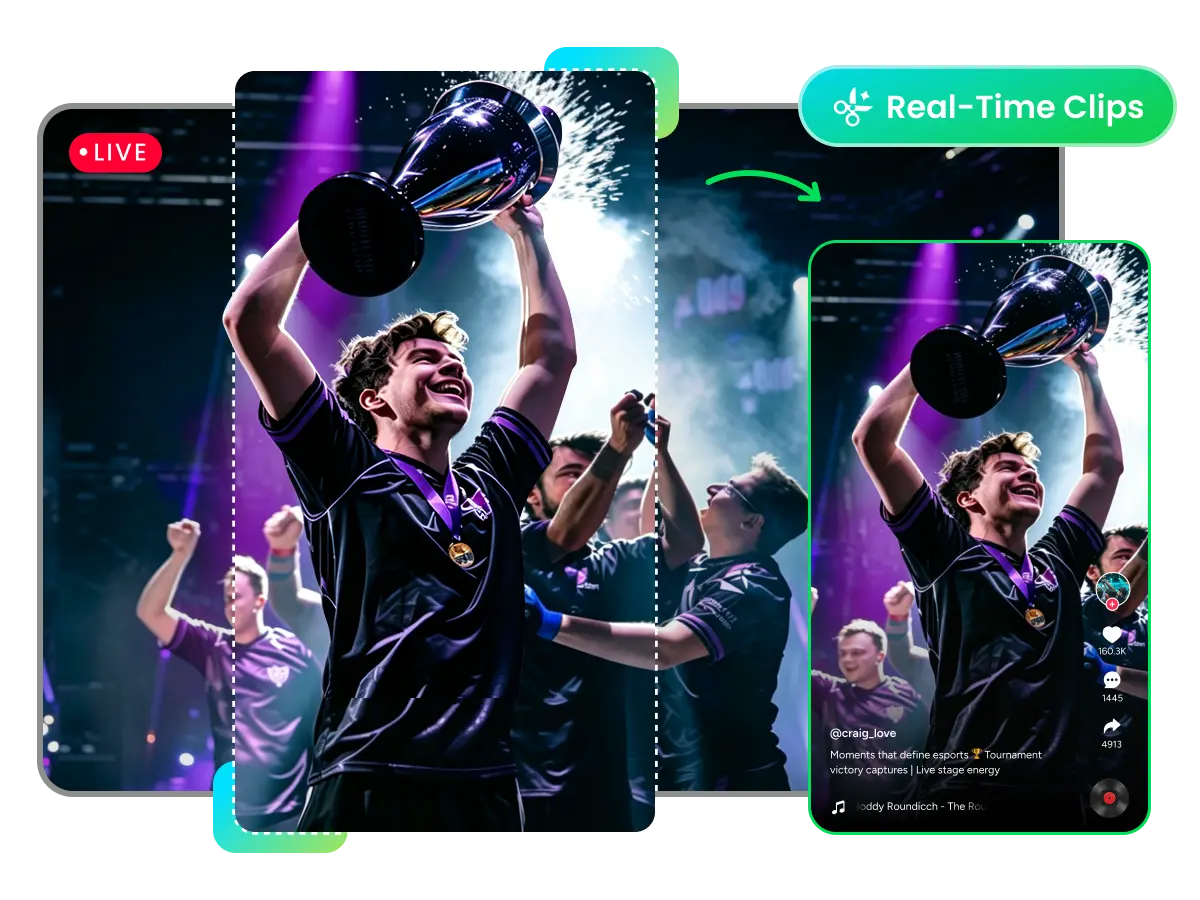
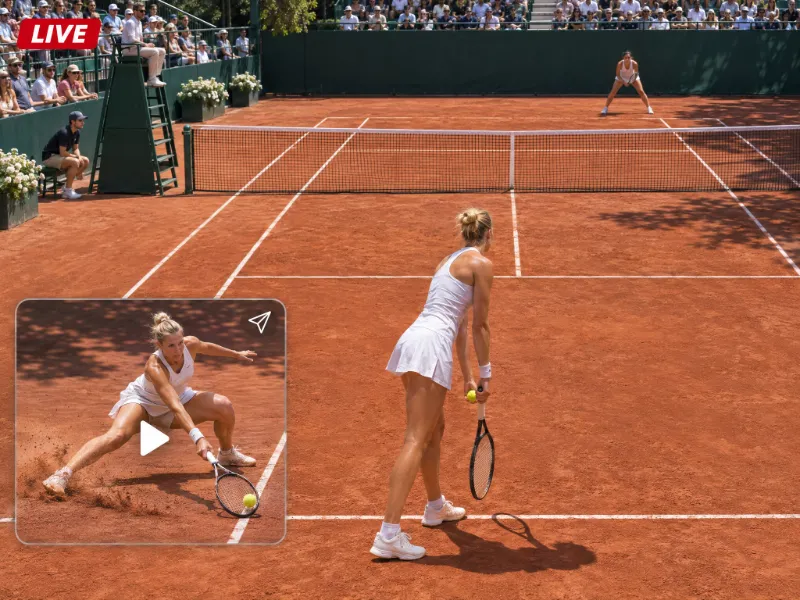
The match is still on, and the comeback is already ready to preview. WayinVideo identifies and cuts shareable moments as the live stream continues, so you can choose a clip and post it while the moment is still fresh.
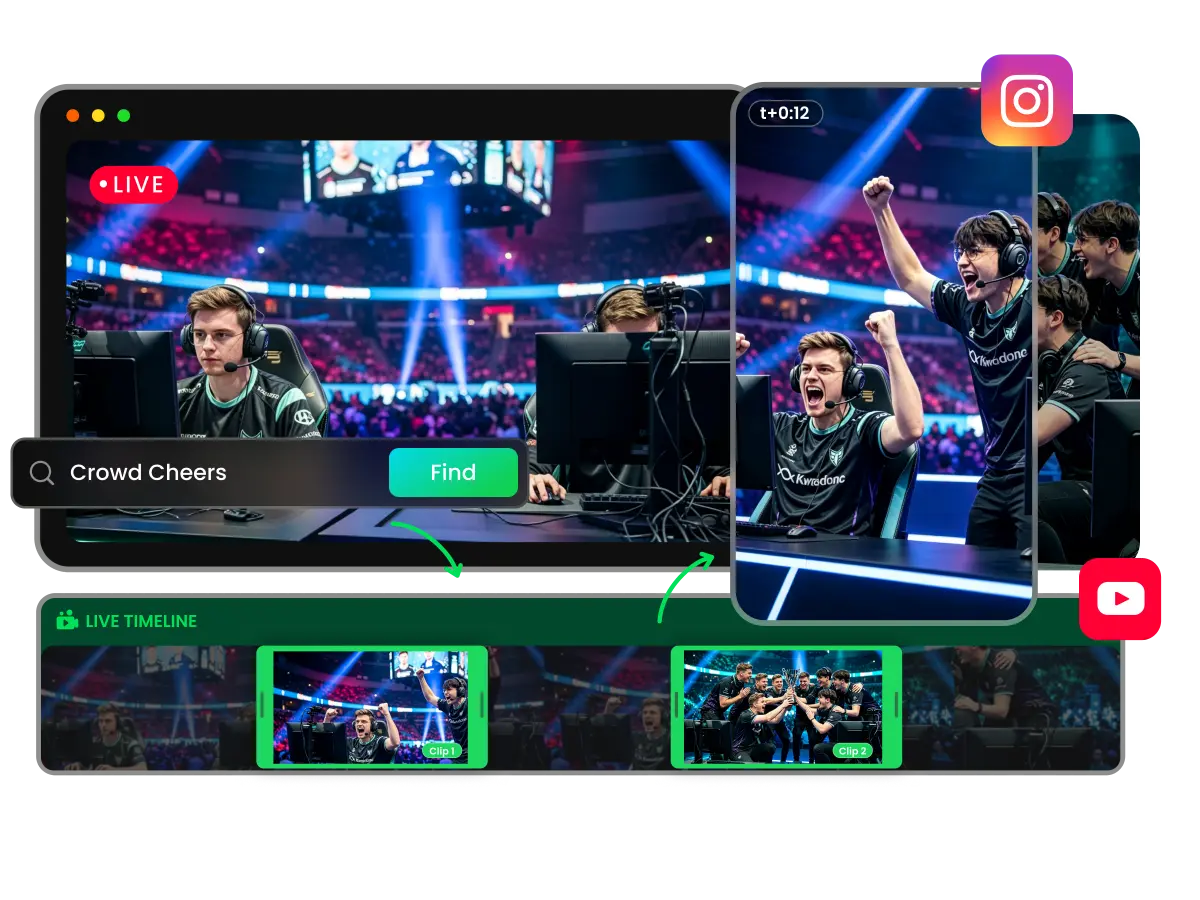
Start with automatic live clipping and AI will look for moments with sharing potential. Have something specific in mind? Add an optional prompt such as “Find every goal and the celebration that follows.” WayinVideo analyzes the visuals, audio, and context to find moments that match.
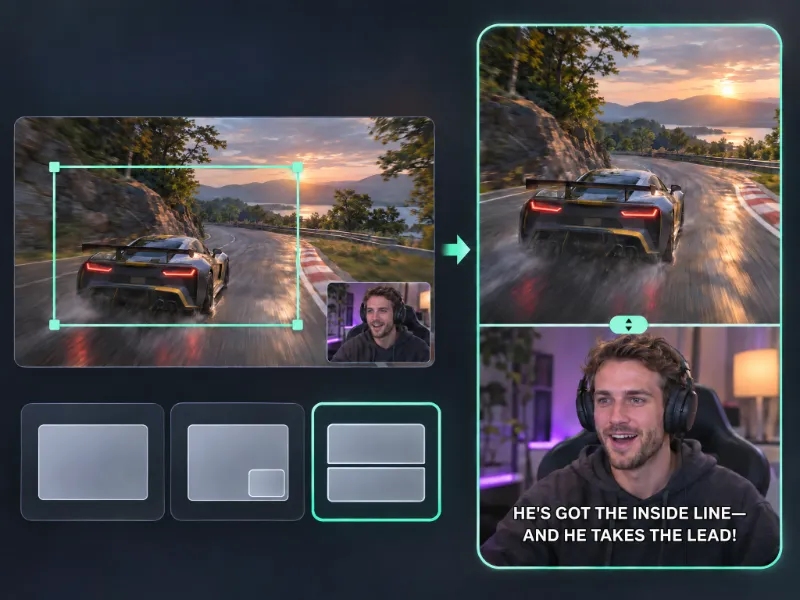
Pick a template before you start. Smart Reframe adjusts the composition to the footage, and the clip comes with animated subtitles in your template’s style. Open it in the Video Editor to refine the framing, split-screen layout, or subtitles.
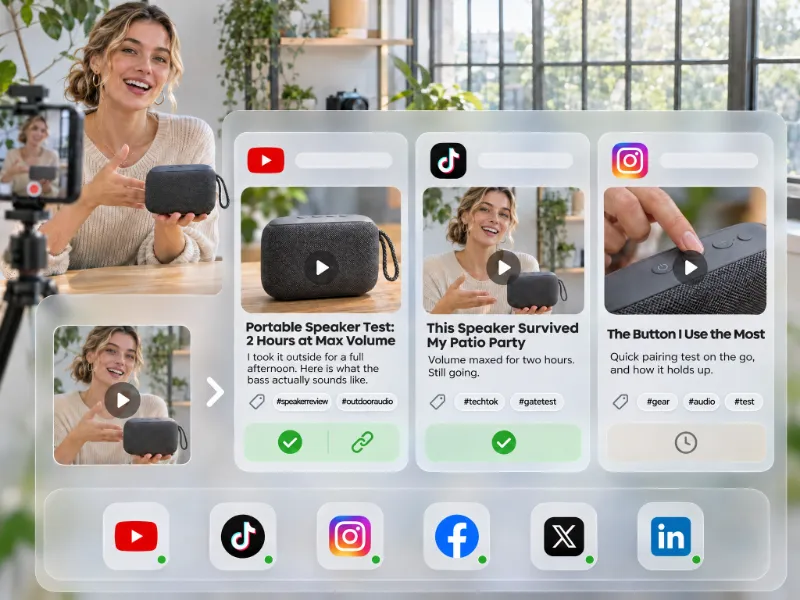
Connect your social accounts and let AI prepare a title, post copy, hashtags, and a thumbnail for each platform. Edit them individually before you publish. Social Media Scheduler shows the status for each platform and links to posts that are live.
Submit your live clipping task and keep streaming. WayinVideo continues monitoring until the stream ends, even if you refresh or close the tool page.
Let AI find shareable moments automatically, or add an optional prompt to focus on the exact content you want.
Each clip gets a score that estimates its appeal. Use it to decide which clips to review first, then choose what fits your audience.
Open your live stream project in the Library to preview finished clips while you’re still live. Return to the same project after you sign off.
Export clips from 720p to 4K. If reframing makes cropped footage look soft, use the video enhancer to improve clarity and upscale it to as high as 4K.
See which platforms have published your clip in Social Media Scheduler. Open each live post directly from its link.
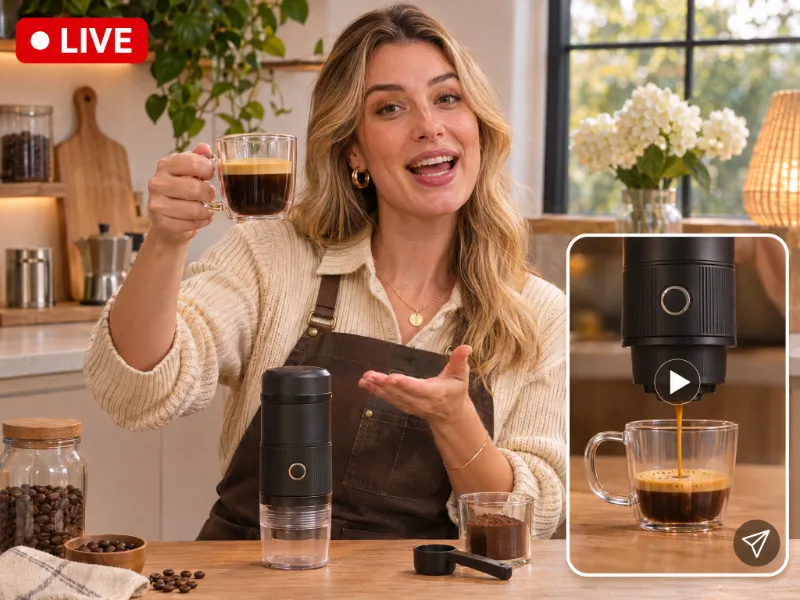
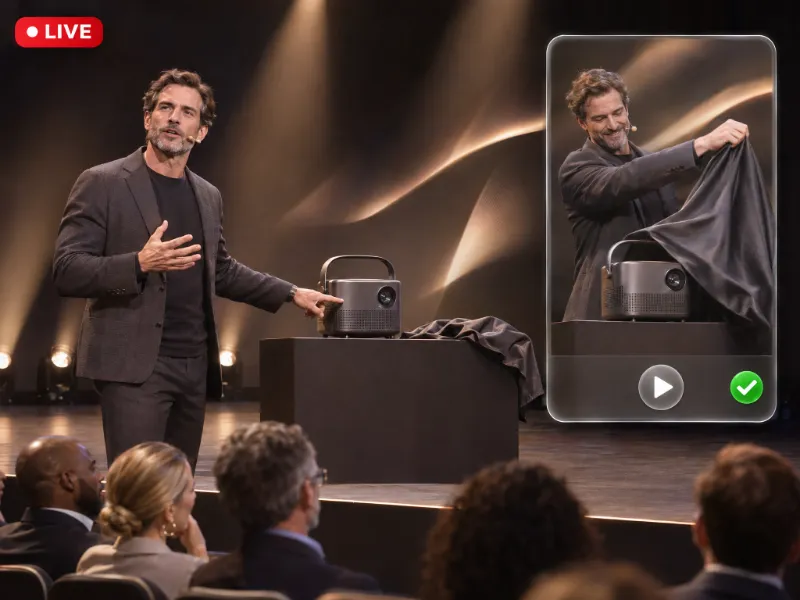
From a last-second goal to a product reveal, turn the moments your audience wants to see into clips you can share before the stream ends.
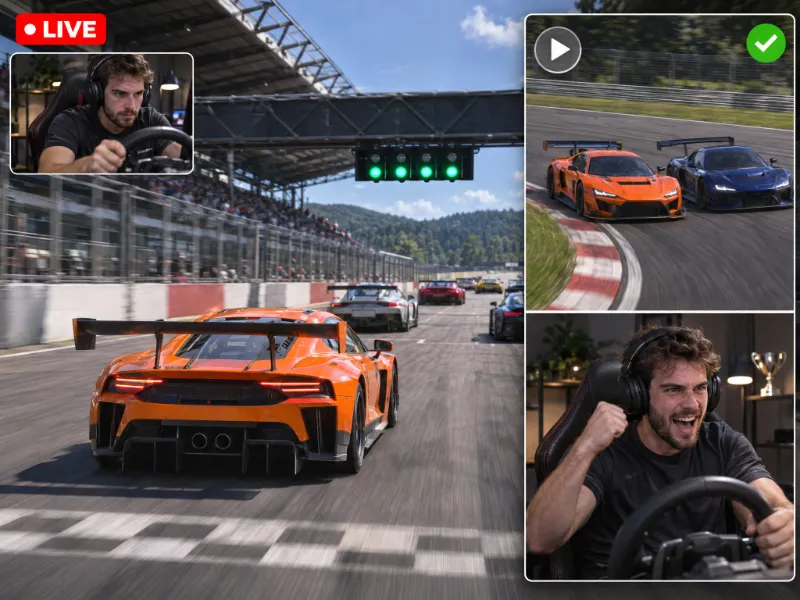
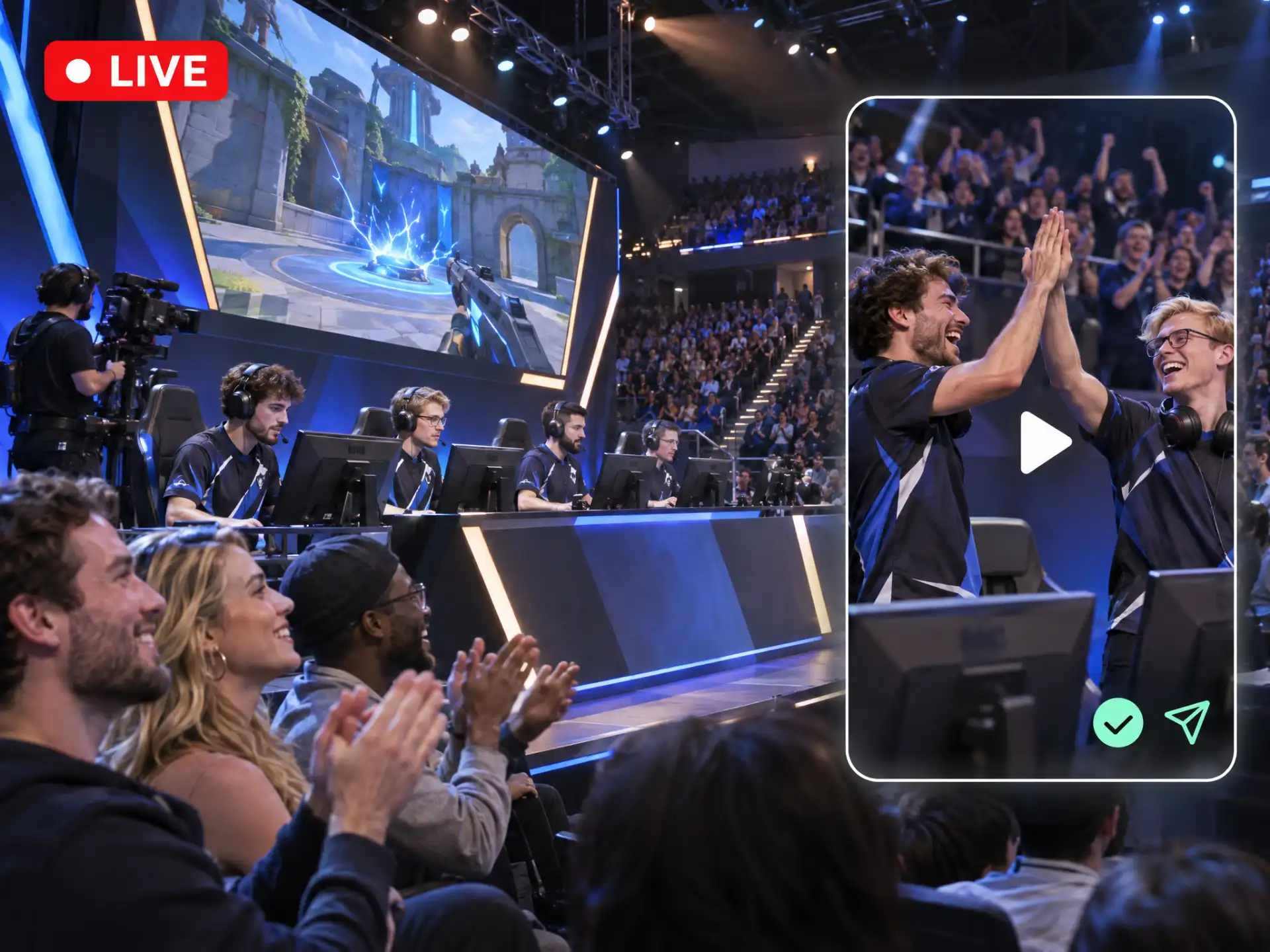
Clip a last-lap overtake, a clutch play, or the reaction your chat is still talking about. Keep your gameplay and facecam together in a vertical clip, then share it while you’re still live.
Clip My Gaming StreamPaste your live stream link and let AI find the highlights, or tell it which moments to look for. Pick a finished clip and share it while the stream is still live.