📌 Quick Summary (BLUF)
The same video can flop after one post, or keep getting views for an entire month. The difference usually isn’t the content itself, it’s whether you have a workflow that automates editing, captions, aspect ratio conversion, and multi-platform publishing. This comparison covers the top 5 best ai video editor options for 2026, including free online editing tools, so you can find one that’s free and actually good enough.
💡 Key Takeaways
- How to choose an ai video editing software: We break down what matters across three areas, features, free plan limits, and batch processing, so you can tell which tool is genuinely usable.
- 5 tools tested and compared: Veed, OpusClip, CapCut, Adobe Premiere, and WayinVideo, with the pros and cons laid out side by side.
- A 5-step walkthrough for total beginners: see exactly how to turn one long video into short clips and auto-publish across social platforms.
- What you get for free: the free plan limits of each tool, so you can get started even with zero budget.
You spend money producing a video, but it gets posted once and nobody watches it. Whether you’re a podcaster, a marketing team, or a content creator, the problem is the same: good content goes to waste, and the time and money you put in barely pays off. The real issue usually isn’t that the video wasn’t good enough, it’s that you don’t have the time or the right editing tool to turn it into content that keeps getting published.
If you’re a beginner looking for a free ai video editor, want to turn a long video into multiple Shorts and Reels, don’t want to learn complicated editing workflows, or just want a simple ai video editing software that handles the cutting automatically, this guide will save you a ton of testing time.
Why Are More People Switching to AI Video Editing Tools?
The problem with traditional editing software isn’t just the learning curve. It’s that you have to manually find the highlights, add captions clip by clip, reformat the aspect ratio, and publish to each platform separately. If you’re producing content every week, these repetitive tasks alone can eat up your entire day.
Today’s ai video editor tools are smart enough to automatically find the best moments, add captions, reframe the video for different platforms, and schedule posts everywhere, all in about 5 minutes instead of a full day. One video can become a month’s worth of content. Below, we compare 5 tools based on one thing: how much time they actually save you.
How the Top Free AI Video Editors Stack Up
There’s no shortage of ai video editor tools on the market, but most of them only solve one part of the workflow. For beginners, the three biggest concerns when choosing a tool are: an overly complicated interface, watermarks on free exports, and having to install extra software. Very few tools manage to avoid all three.
Veed covers a wide range of features, captions, translation, and basic editing are all solid, and the interface is fairly intuitive. But it’s built around editing and exporting one video at a time, with no batch processing, so once your content volume grows, you’ll spend a lot of time making the same edits one by one.
Opus Clip was one of the pioneers of turning long videos into short clips, and it’s good for quickly producing a handful of shorts. The catch is the same: everything is processed one video at a time, with no batch mode, and you still have to manually move each clip to different platforms yourself.
CapCut has tons of templates and a friendly interface, making it a smooth choice for individual creators working on a single video. But if you want to turn a long video into short clips, you’ll need the app or desktop version, since the web version’s support for this is quite limited.
Quick Comparison: Best AI Video Editors 2026
| Tool | Free Plan / Entry Barrier | URL Input (No Download) | Find Moments (Semantic Search) | Batch Processing & Auto-Publish | Caption Accuracy |
| WayinVideo | 200 free credits on signup (no card required) | ✅ Broadest support (YouTube/TikTok/Zoom) | ✅ Precise semantic search | ✅ All-in-one automation | 99% (multimodal) |
| CapCut | Limited free plan / app download required | ❌ | ⚠️ Basic editing only | ❌ No auto-scheduling | Mid |
| OpusClip | Daily limit / queue required | ✅ | ⚠️ AI filtering only | ❌ Manual publishing required | Mid |
| VEED.io | Watermark restriction | ✅ | ❌ | ❌ | Mid |
| Adobe Premiere | 7-day trial / high barrier to entry | ❌ | ⚠️ Manual plugin required | ❌ | Mid-low |
Which AI Video Editor Is Right for You?
The right choice depends on what you’re trying to do. Best for beginners: CapCut, with its simple interface and templates. Best for professional editing: Adobe Premiere, for advanced timeline control. Best for viral clips: Opus Clip, for fast short-form repurposing. Best for browser-based editing: VEED, no software install needed. Best for turning long videos into Shorts with batch processing and auto-publishing: WayinVideo.
The comparison table makes it clear: most tools have a major gap when it comes to batch processing and auto-publishing. WayinVideo is currently the only free tool that brings finding highlights, batch editing, and scheduled publishing together in a single interface. Below, we walk through the full workflow using a real webinar recording.
Hands-On Demo: Turn One Webinar Into 15+ Shorts With AI
WayinVideo gives new users 200 free credits with no credit card required, and you can start right from your browser. Here’s a step-by-step demo using a one-hour webinar. If your source material is a product launch video or a course recording instead, the workflow is exactly the same, the only difference is what keywords you search for in Find Moments, WayinVideo’s built-in AI clip generator.
Step 1: Paste a Video Link or Upload Your File
Head to WayinVideo‘s ai video editor and paste in a video link directly from YouTube, Twitch, Zoom, Facebook, or similar platforms, or upload a video file from your computer. No downloading or converting needed beforehand.


Step 2: Text-Based Video Editing — AI Finds, Scores, and Transcribes Highlights for You
No need to watch the whole video from start to finish. Just search with a keyword, for example “Find Elon Musk announcing the Terafab project,” and once confirmed, AI instantly cuts the matching segment for you and ranks it with an AI virality score based on its viral potential, so you know which clips to prioritize before you even publish.

You can also edit each clip the same way: WayinVideo’s text-based video editing automatically flags filler words and silences in the video transcription, so deleting the corresponding text trims that part out of the clip.

Step 3: Batch Edit with AI, and Say Goodbye to Repetitive Editing Work
Select multiple clips at once to apply dynamic caption styles, adjust to a 9:16 aspect ratio, and add an AI Hook opening title, all in a single batch. AI also automatically matches royalty-free background music and sound effects, ranging from cinematic to corporate styles, so you don’t have to worry about licensing issues.

Step 4: Schedule and Publish to Six Platforms in One Click
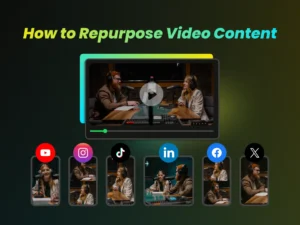
Once everything looks good, export all your clips at once and use the built-in calendar to schedule uploads across all six platforms, YouTube, TikTok, Instagram, X, Facebook, and LinkedIn, no need to manually switch between different platform apps.

What 15–20 Shorts From One Video Can Do For You
The same workflow works for podcasts, product launches, and course recordings alike. By the end, you’ll have 15 to 20 short videos, all formatted, reframed, and captioned, with foreign-language videos automatically translated into Traditional Chinese subtitles too. Just set your schedule and let it publish automatically.
The real value isn’t “more content,” it’s that a video which would normally only get seen once suddenly gets discovered by someone new every few days. Each short clip can include a link, sending viewers straight back to the original video or product page. You don’t need to brainstorm new topics every week, one piece of source material can keep several platforms running at once. Once you’ve run it through WayinVideo, you’ll realize a single video can do a lot more than you’d expect.
Conclusion: The Best AI Video Editor for Repurposing Long Videos
If what you need is repurposing long videos into multiple shorts, WayinVideo brings finding highlights, batch editing, and scheduled publishing together into a single streamlined workflow, making it one of the few options that balances efficiency with a genuinely free plan.
When choosing an ai video editor, ask yourself one question: from a single raw video to publishing across platforms, how many manual steps are still in your way? The more tools you have to switch between, the more time gets eaten up by busywork instead of the content you actually want to make.
If you need to turn long videos into shorts, process multiple clips at once, and auto-schedule across platforms, WayinVideo gives new users 200 free credits right away, no credit card required, and exports have no watermark. All features are free to try, so test it out and decide for yourself whether to keep using it.
FAQ
Q1: What’s the top-recommended free AI auto-editing tool for 2026?
If you need to turn long videos into YouTube Shorts with automatic captions and batch publishing, WayinVideo is currently one of the most full-featured free ai video editor options online. No software installation required, new users get 200 free credits, and you can try every feature for free.
Q2: Can AI automatically cut Shorts from a video?
Yes. Both WayinVideo and OpusClip support AI-generated YouTube Shorts and Instagram Reels. The difference is that WayinVideo supports batch processing and automatic scheduled publishing, while OpusClip requires you to process clips one at a time.
Q3: Which AI editing tool is best for beginners?
If you have zero editing experience, CapCut works well for single videos, with a friendly interface and plenty of templates. WayinVideo is better suited for creators who post frequently and need a workflow for producing large volumes of short videos, it runs right in your browser with nothing to install.
Q4: What’s the difference between an AI video editor and an AI video generator?
AI video generators (like Runway or Sora) create entirely new videos from text prompts. AI video editors (like WayinVideo) take videos you already have and automatically turn them into Shorts, Reels, and other social content. The two serve completely different purposes.
Q5: Which video platforms are supported?
WayinVideo supports major platforms including YouTube, TikTok, Twitch, Zoom, Facebook, Vimeo, and Dailymotion, simply paste in a link, or upload a local video file.
Q6: What languages does keyword-based clipping support?
Keyword-based clipping supports over 100 languages. You can search using Traditional Chinese directly to find matching segments, no need to switch language settings. Any segment you find can also be auto-translated into Traditional Chinese captions, which is especially useful for Taiwanese creators working with English or other foreign-language videos.
Q7: Does AI B-Roll cost extra?
No. The 200 free credits you get on signup are enough to try out the AI B-Roll feature. Once your credits run out, you can consider upgrading to a paid plan to continue.
Q8: Can brand teams connect via API?
Yes. WayinVideo offers an API integration that lets you programmatically trigger AI auto-editing, speech-to-text, content summarization, and key moment search, all without opening a browser, directly within your existing automation workflows. For full documentation, see the WayinVideo API.
Q9: Is it true there’s no single “best” AI video editing tool?
That’s right, no single tool fits everyone, it depends on your workflow. If you’re turning long videos (podcasts, webinars, vlogs) into multiple short clips automatically, WayinVideo falls into this “long-to-short repurposing” category, and also bundles in batch editing and cross-platform scheduling. If you only need basic editing for a single video, CapCut is a lighter option. The key is figuring out whether your workflow is “producing lots of shorts repeatedly” or “fine-tuning one video,” then choosing based on that.
Q10: What is the best AI video editor for YouTube Shorts?
For YouTube Shorts specifically, you need a tool that can automatically detect highlights from a long video, reframe the aspect ratio to 9:16, add auto captions, and let you schedule uploads directly to YouTube without switching apps. WayinVideo covers all of these in one video editing workflow, making it one of the most complete free AI clip generators for YouTube Shorts in 2026.