📌 Quick Take (BLUF)
Video-to-text failing on you? The problem isn’t user error — it’s that most tools simply can’t read videos without CC captions. WayinVideo’s next-gen AI speech recognition lets you auto-generate subtitles from any video. Just paste a link or upload a file, and get accurate, dynamic captions in one click. Translate into 100+ languages, clip into short videos, and schedule posts — one video, four audiences. Free to start, no credit card needed.
💡 Key Takeaways
- Traditional tools give up the moment there’s no subtitle file — WayinVideo listens to the audio directly, so any video with sound can get captions generated at 99% accuracy.
- Works wherever your video lives — paste a YouTube or TikTok link, or upload a local file. Three steps, fully automatic. No downloading or converting required.
- One video, four times the value — once you have the transcript, turn it into a blog post, pull high-traffic quotes for social, translate into multiple languages with one click, and clip it into short videos for scheduled posts. Same content, completely different audiences.
You find a packed YouTube video worth taking notes on — but there are no captions, and you don’t know where to start. Or you’ve just wrapped up a podcast and want to turn it into an article, but spending two to three hours typing it out manually sounds awful. There’s a faster way. With today’s AI tools, you can convert any video’s audio into subtitles in seconds — the whole process takes under five minutes.
And subtitles are worth more than you think. Research shows captioned videos get 40% more views on average, and over 85% of social media videos are watched on mute.
In this guide, we’ll show you how to generate subtitles from any video for free using WayinVideo — no CC captions required. Once you have the transcript, turn it into a blog post, social content, or multilingual versions, and keep one video working across completely different audiences. All you need is a browser.
Why Does Video-to-Text Sometimes Fail?
You’ve probably tried more than one subtitle tool — and it keeps failing. The video uploads fine, but the captions never show up, or you get some “unable to recognize” error. Here’s the thing: it’s not you. Most of these tools have a fundamental limitation — they can only read subtitle tracks that already exist inside the video file. No CC captions built in? They’ve got nothing to work with.
And that covers a lot of videos: stuff you recorded on your phone, meeting recordings, live stream replays, YouTube videos that haven’t been captioned yet. For all of these, most tools just bail.
That’s why the exact same video works in one tool but fails in another. Traditional video-to-text tools are basically just looking for a subtitle file — if they can’t find one, they give up. WayinVideo works differently. It uses the latest multimodal AI speech recognition to listen directly to the audio in the video — no embedded captions needed. As long as there’s sound, it can generate subtitles. The AI handles the rest.
But with so many tools out there, how do you actually pick one without stepping on another landmine?
4 Things to Look for in an AI Subtitle Generator
Subtitle tools vary a lot in what they can actually do. Picking the wrong one doesn’t just waste your time — it might not even be able to extract captions from your video in the first place. Here are four things worth checking before you commit to any tool:
1. Free trial with no credit card required A lot of tools market themselves as free, but ask for a credit card upfront — or give you such a small free quota that you can’t even complete a full test run. A good tool should let you try the entire workflow risk-free before you decide whether to pay. WayinVideo’s AI subtitle generator gives you 60 free minutes per day with unlimited auto-generated dynamic captions, plus 200 credits when you sign up.
2. AI speech recognition — not just subtitle track reading Tools that only read existing subtitle tracks are useless the moment a video doesn’t have one. A genuinely useful tool should be able to process the audio directly — so whether or not there’s a subtitle track, any video with sound can get captions generated.
3. URL input — no downloading required If you want to generate captions from a YouTube or TikTok video, having to download it first just to re-upload it is an unnecessary extra step. A good tool should let you paste the video link directly and skip the whole process.
4. Multilingual support with reliable accuracy Speech recognition accuracy directly affects how much manual correction you’ll need to do afterward. Different tools handle different languages and accents with varying results — before you pick one, make sure it supports your language and has a proven accuracy rate.
WayinVideo checks all four boxes — 60 free minutes a day, no credit card needed, and one of the lowest-friction tools available right now. Below, we’ll walk through a real example using a video with no subtitle file, so you can see exactly how simple the process is.
How to Add Subtitles to a Video — 3 Steps with AI
WayinVideo’s free AI subtitle generator gives you 60 free minutes per day — no credit card, no software to install. Just open Chrome and you’re ready to go. Here’s a real walkthrough using a YouTube video with no CC captions:
Step 1:Open WayinVideo and paste your video link or upload a file
You can paste a URL directly from YouTube, TikTok, Facebook, Vimeo, Dailymotion, and more — or upload a local file in MP4, MOV, or other common formats from your computer. No downloading or converting needed beforehand.

Step 2:Select your language and let AI generate captions from the audio
Choose your language and hit generate — the AI takes it from there. Even if the video has no existing captions, WayinVideo listens directly to the audio and generates subtitles automatically, with 99% accuracy across 100+ languages. The entire process is fully automated, no manual input required.

Step 3:Review your captions and export
Once the captions are generated, they’ll appear in the editing interface synced with the video, so you can go through them line by line and click directly on any text to make corrections. When you’re done, export as an SRT subtitle file — or apply a dynamic caption style and export the full video. WayinVideo handles the entire workflow in one place, start to finish.

Subtitles Are Just the Starting Point — How to Get 4x the Value from One Video
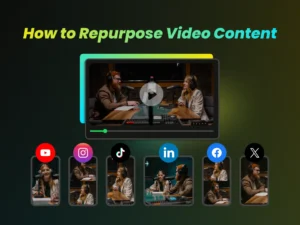
A lot of content creators now follow this workflow: record one video, use WayinVideo to extract the transcript, turn it into a blog post, pull standout quotes for social media, then clip the video into short-form content for TikTok, Reels, and Shorts. One piece of content, four different audiences — at almost zero additional production cost.
This approach has a name: content repurposing. The idea is to take a single piece of original content and reuse it across different formats. Subtitles are the critical starting point — once you have the text, every downstream step becomes straightforward.
Here’s what you can do once you’ve extracted the transcript:
Turn subtitles into a blog post Clean up the paragraph breaks and punctuation, and a talk or interview becomes a full article — no rewriting needed. A practical approach for creators who want to run both video and written content without doubling the workload.
Pull high-value quotes for social media Pick out strong segments from the transcript, do a light edit, and you’ve got ready-to-post content for LinkedIn, Twitter, or Instagram. A 30-minute video can typically yield five to ten insights or highlights worth sharing on their own.
Translate captions into multiple languages in one click WayinVideo supports one-click translation into 100+ languages. Add different language subtitles to the same video and you’re reaching entirely new audiences — one of the lowest-cost ways to go international.
Clip into short-form content for multiple platforms Apply a dynamic caption style, adjust the aspect ratio in one click, and the same video is ready to publish on TikTok, Instagram Reels, and YouTube Shorts — no re-editing required. You can also schedule posts directly from the built-in calendar, set your upload times, and let it auto-publish without manually switching between platform apps.

If you want to dive deeper into how to monetize your video content, check out this article:How to Make Money with Video Editing (2026 Tutorial)
Conclusion: Pick the Right Tool and Extract Subtitles in Under a Minute
One video, one transcript — and from there you can spin it into articles, social posts, and multilingual short-form content, reaching completely different audiences from the same source material. It’s one of the most cost-effective workflows available to content creators right now. But it only works if your tool can handle videos with or without an existing subtitle track, and deliver accuracy high enough that you’re not spending more time fixing errors than you would have spent typing manually.
WayinVideo supports direct URL input and local file uploads, with AI speech recognition at 99% accuracy across 100+ languages — no subtitle track required.
Try it now: no credit card needed, 60 free minutes per day, and 200 bonus credits when you sign up. See how it works before you commit.
FAQ
Q1:Can I generate subtitles if my video has no CC captions?
Yes. WayinVideo uses AI speech recognition to analyze the audio directly — it doesn’t rely on an existing subtitle track. As long as the video has clear audio, it can generate captions at 99% accuracy.
Q2:What are the limitations of WayinVideo’s free plan?
You get 60 free minutes of subtitle generation per day, no credit card required — just open your browser and start. If a single video exceeds 60 minutes, or you have high-volume batch needs, you can upgrade to a paid plan for more quota.
Q3:What languages does the subtitle generator support?
WayinVideo supports 100+ languages, including Chinese, English, Japanese, Spanish, and other major languages, at 99% accuracy. Once generated, you can fine-tune the captions directly in the online editor to make sure everything reads correctly.
Q4:What formats can I export the subtitles in?
You can export as an SRT file for use in other editing software or video platforms. Alternatively, apply a dynamic caption style within WayinVideo and export the full video — both options are supported.
Q5:Can I translate the extracted subtitles into other languages?
Yes. WayinVideo supports one-click translation into 100+ languages. There’s no need to switch to a separate translation tool — subtitle generation and translation happen in the same interface, and you can export multilingual versions directly from there.