
In this post, we will walk you through a step-by-step tutorial on how to use animated captions in over 100 languages.
Step 1: Paste a Link or Upload Your Video
Use a video from a public platform or from your local device. You can upload a local file or paste a link—for example, a YouTube URL.
Then click “Animated Captions in 100+ Languages” and press the green button to start.The tool will automatically generate captions for you.
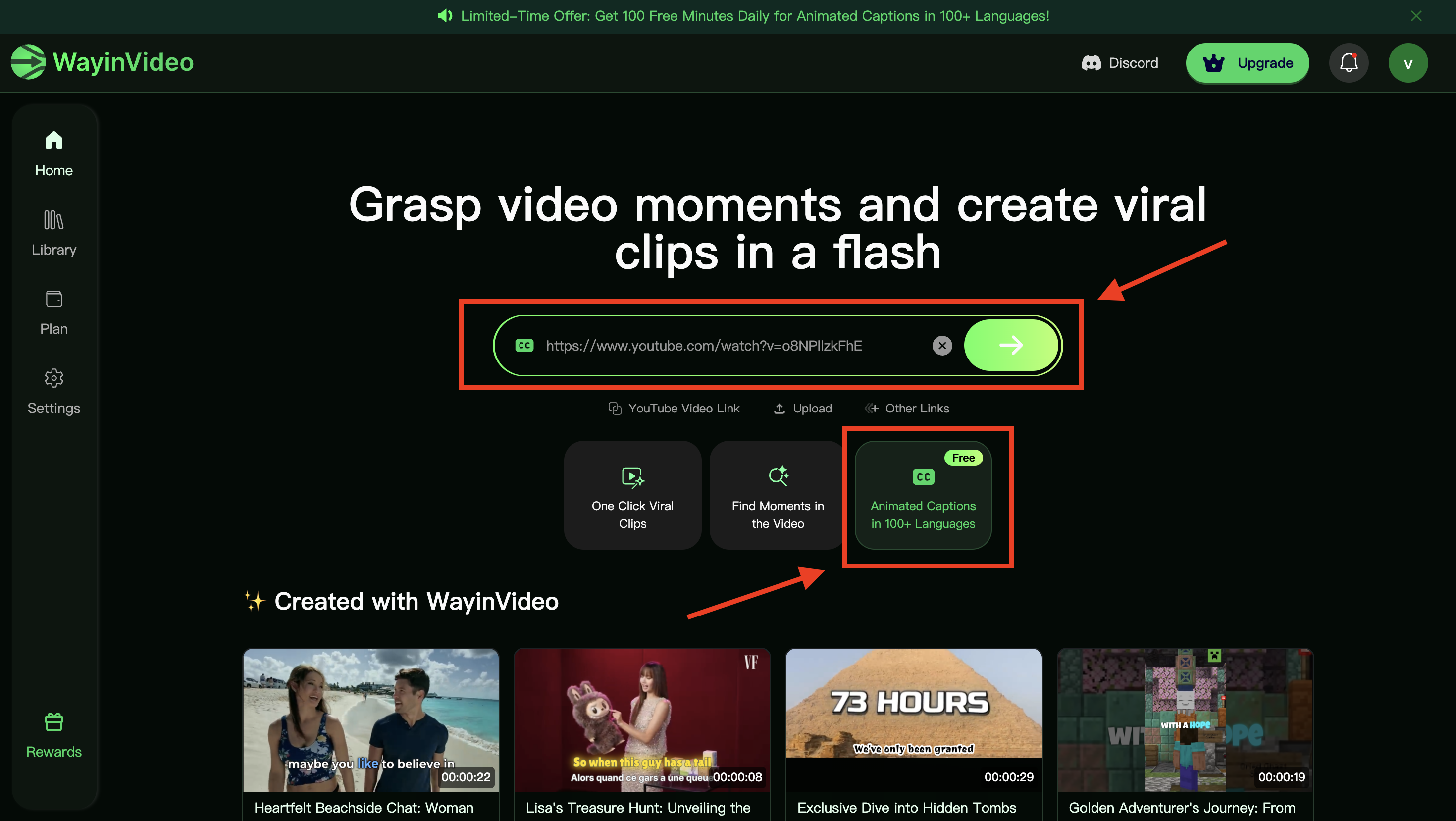
Upload Video
Step 2: Click “Generate Captions”
After uploading your video, you can manually select a language from the dropdown menu. Click “Generate Captions.” WayinVideo will automatically detect the spoken language.
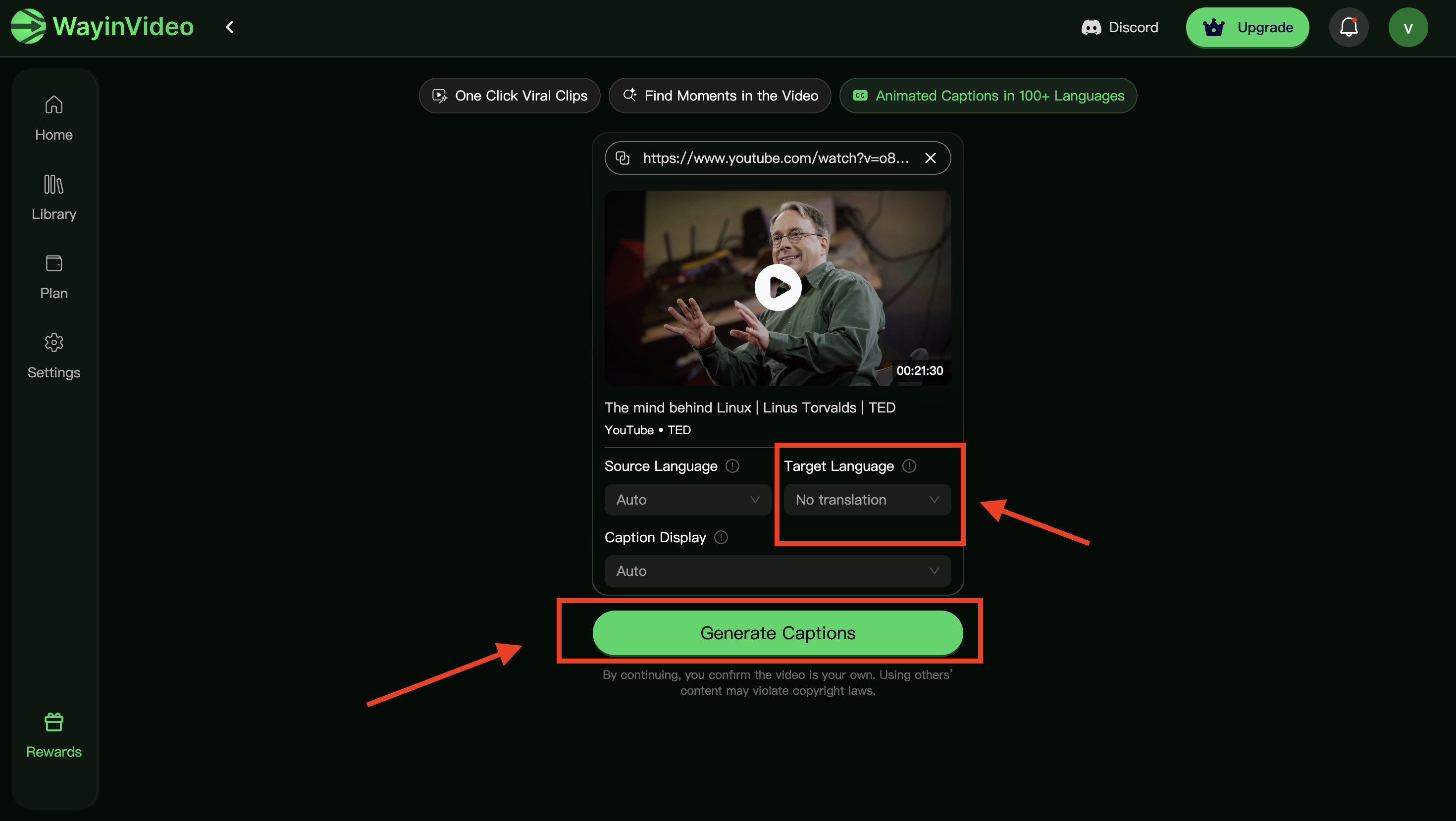
Click Generate Captions and Choose Target Languages
Please wait while the AI analyzes your video; it usually takes only a few seconds.
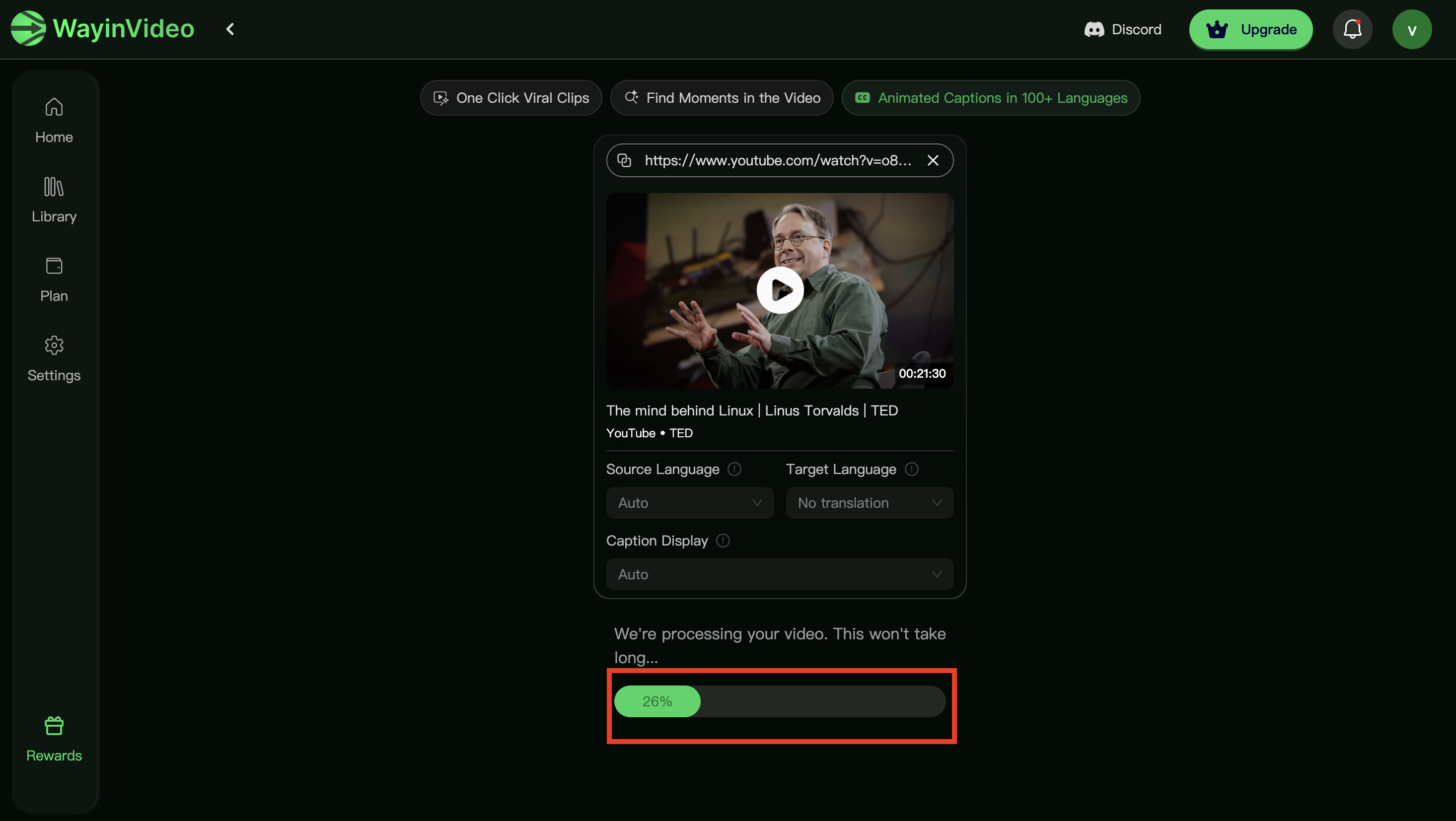
Let the AI analyze the video
Step 3: Add Animated Captions & Customize Style
Here, you can change almost everything about the captions:
You can edit the captions—modify every character if needed.
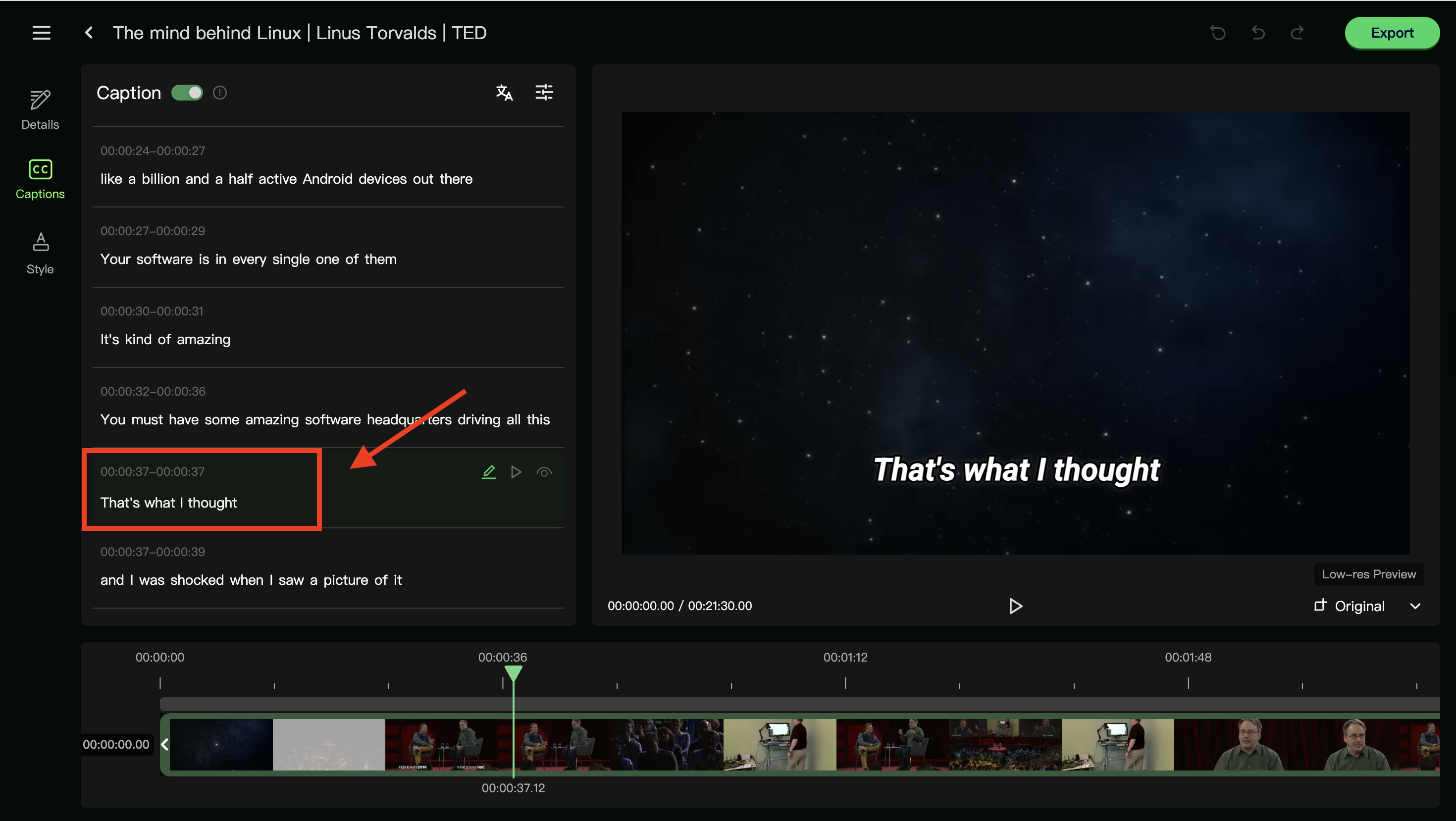
Make revisions to the captions
You can also change:
- Font: Choose between modern or classic font styles
- Color: Set your primary text color to match your brand or tone
- Background: Use a solid, semi-transparent, or transparent background
- Stroke: Add an outline to your text to improve visibility
- Shadow: Apply a shadow to create visual depth and focus
- Highlight: Emphasize key words or phrases with bright or accent colors
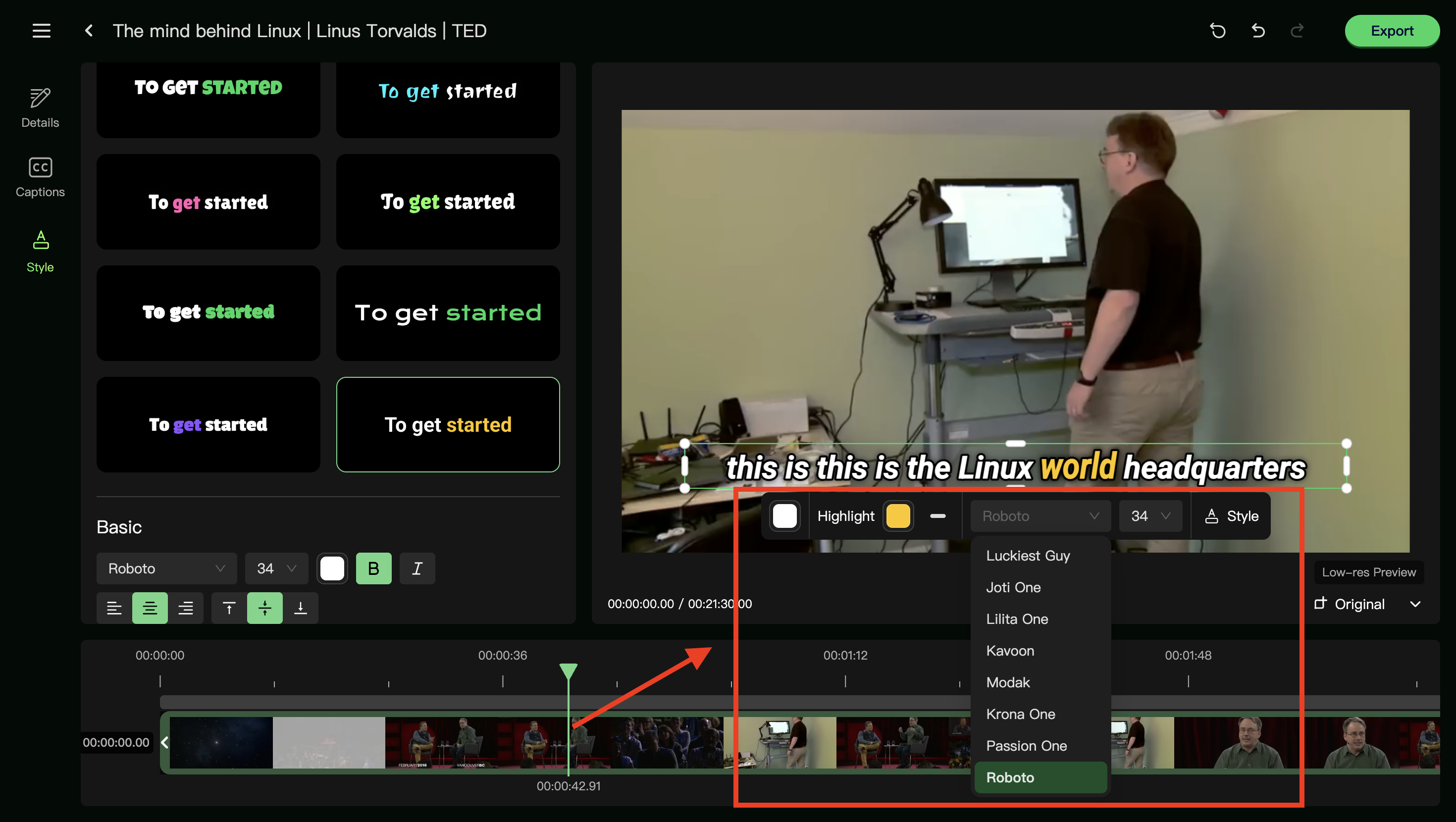
Change Captions & Customize Style
You can also retranslate the captions.
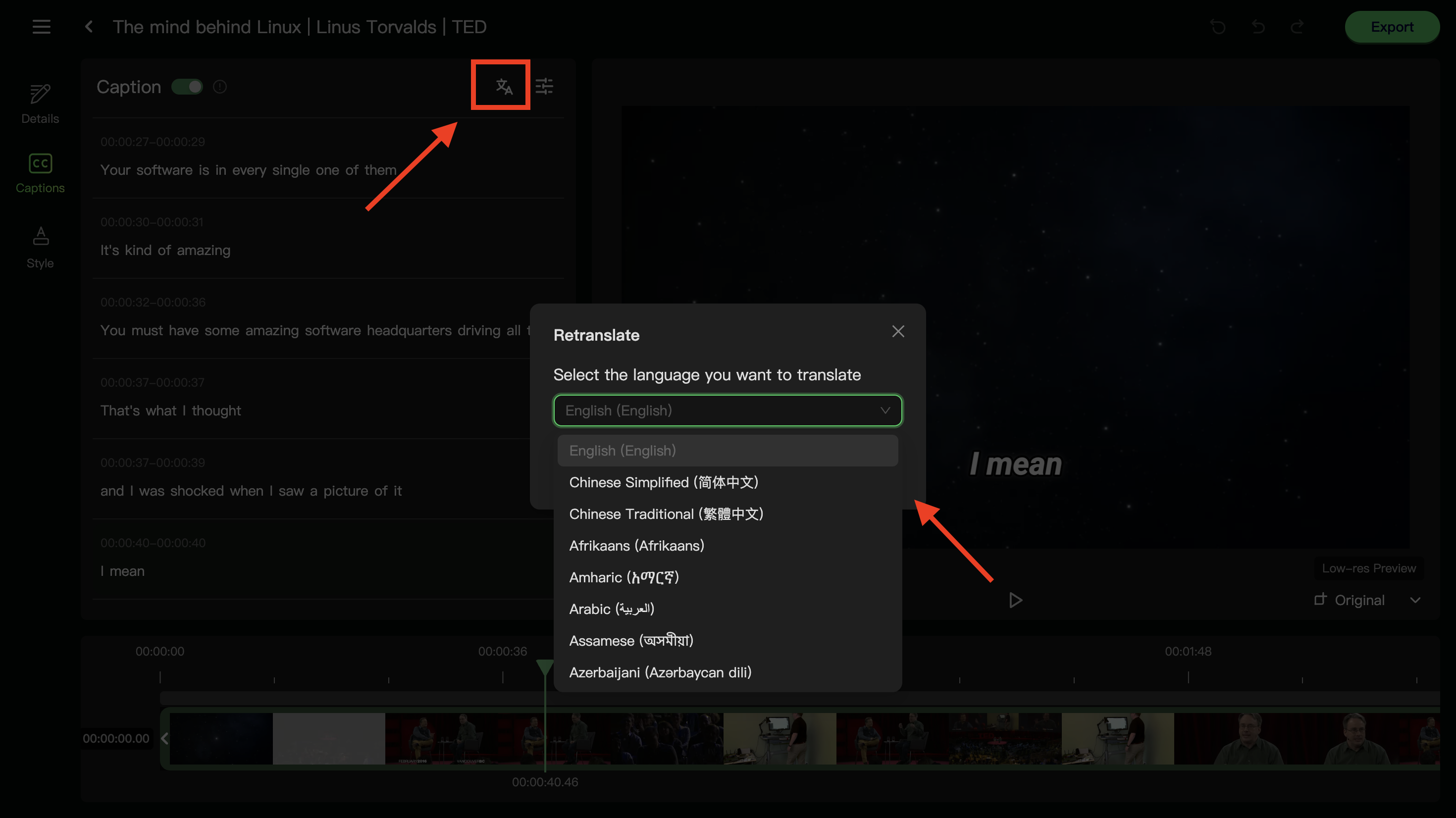
Retranslate the Captions
Additionally, you can create bilingual subtitles to maximize your global reach. This powerful feature allows you to display both the original language and a translated version simultaneously – perfect for content creators targeting multilingual audiences or language learners.
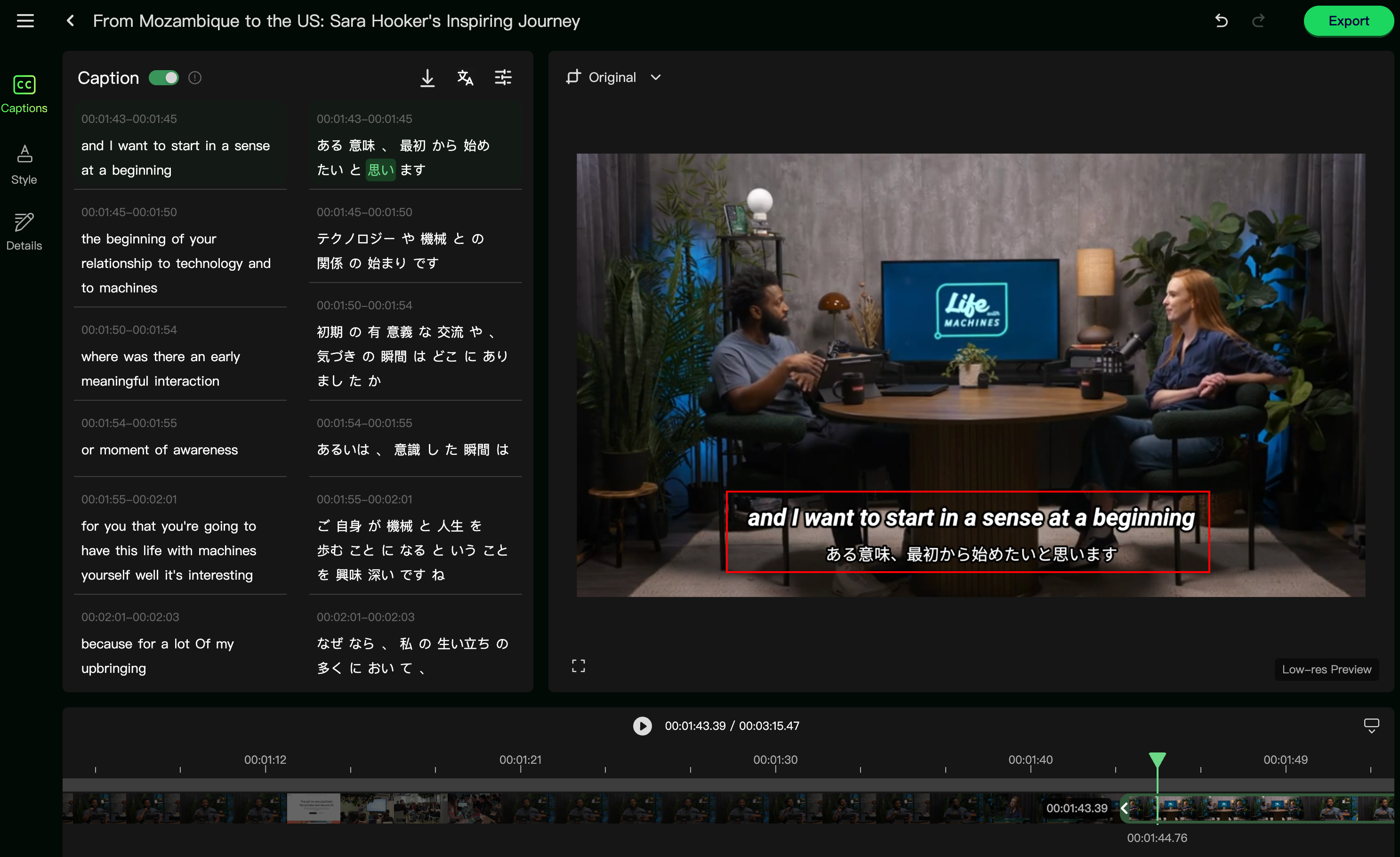
Step 4: Change the Dimensions & Export
You can change the video aspect ratio to 16:9, 9:16, 4:5, or 1:1 to suit different platforms like Twitter, Instagram, and YouTube. Adjust text size and position to ensure captions are centered and not blocked by platform UI.
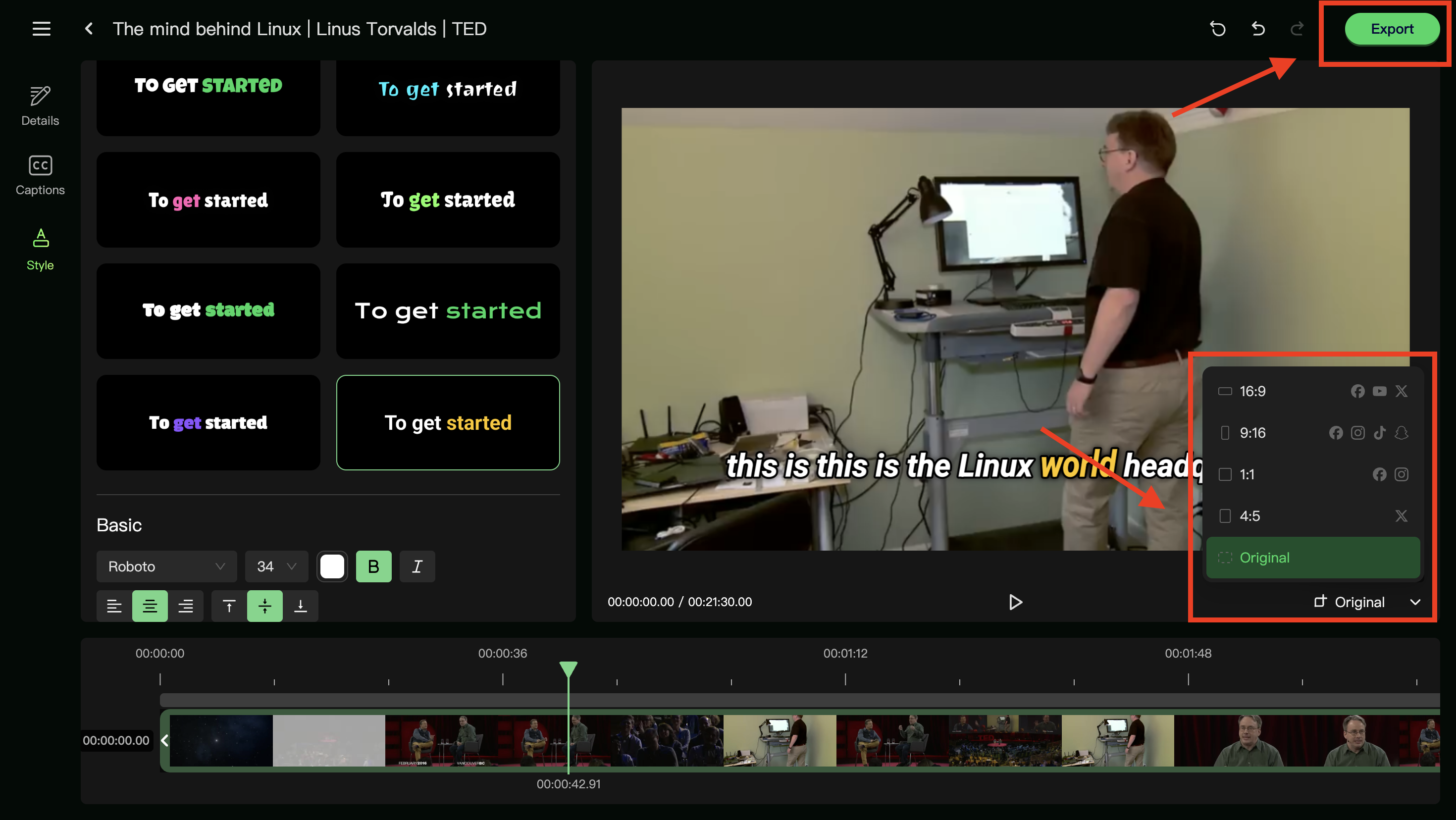
Change the aspect ratio
Don’t forget to acknowledge the copyright responsibility notice.
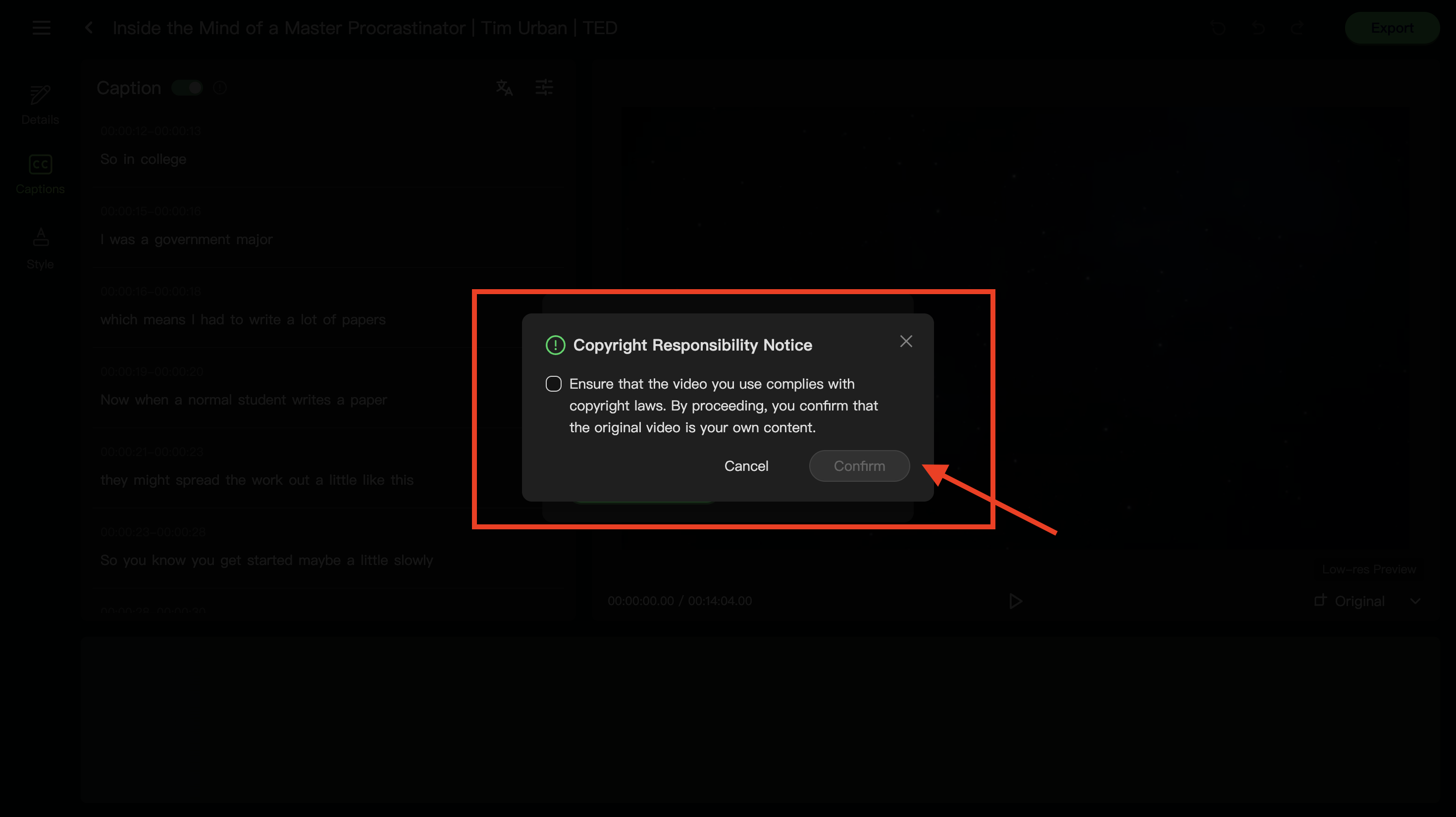
Confirm the Copyright Responsibility Notice
Conclusion
WayinVideo’s animated captions in 100+ languages make it easy for creators to localize content and engage audiences worldwide. By following the simple steps to upload, auto-detect language, customize captions, and export for your target platform, you can create visually engaging videos that are accessible and appealing across different platforms. Try it now!
FAQ
Do the animated captions support right-to-left languages like Arabic or Hebrew?
Not available yet, but we’re working to add this feature soon.
How many languages can be added for subtitles at once?
You can add subtitles in two languages to a video simultaneously. WayinVideo automatically recognizes the original speech and translates it into your selected languages. Both languages generate separate subtitle tracks, making it easy to switch between them or export different versions later.